Understanding Printer Command Codes (ESC POS)
The printer codes that we use in manager console, known as ESC POS codes, are decimally-represented ASCII characters that are combined to make Epson Print Commands. We use Epson commands by default because SNBC printers are Epson-emulating printers. These codes can be used for other Epson-emulating printers as well.
*These codes are the main reason we don't use the USB interface for printers - the software hasn't been designed to. These codes are communicated via serial and ethernet, but any USB printer would have to be implemented via a virtual com port.
The tools you will need to understand this KB are:
The Epson ESC POS code list:
An ASCII conversion chart, like the one below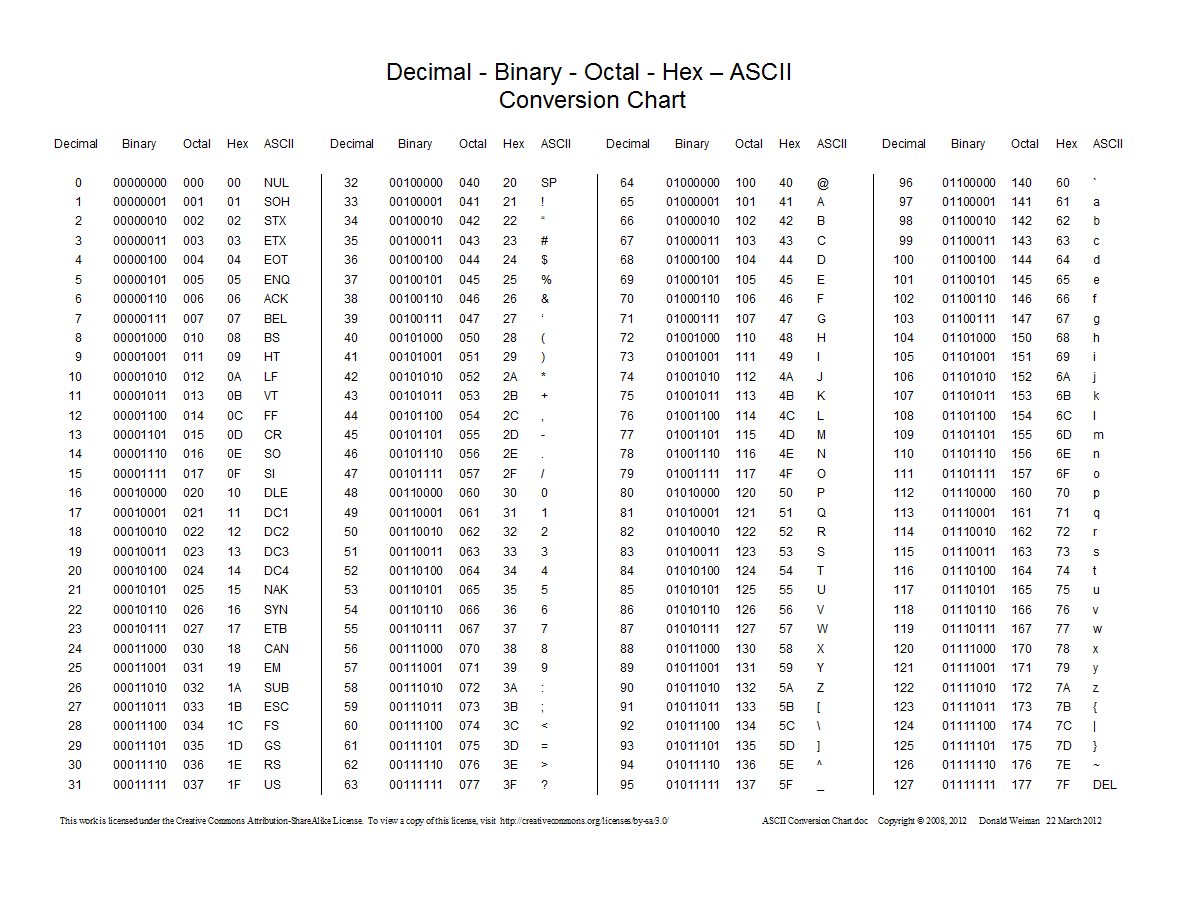
Finally a onePOS installation to test with. For this KB, we will be referencing a standard SNBC thermal printer hardware setup.
As you can see from the hardware settings, commands are strung together like sentences where the spaces between the numbers are just like spaces between words.
To begin, let's convert the characters (the "words" in our command sentence) that are put together to make the "Normal Command" from decimal back to ASCII. Using the ASCII conversion chart, we can see that the decimal numbers convert as follows:
27 - ESC
33 - !
2 - STX
Referencing these ASCII characters to the Epson code list, we can see that we are using the "ESC !" command (further explained here: https://download4.epson.biz/sec_pubs/pos/reference_en/escpos/esc_exclamation.html).
The "ESC !" command tells the printer that we are selecting "the character font and styles (emphasized, double-height, double-width, and underline) together..." In this command format "27 33 n", "27 33" represent the command itself and "n" represents what our desired outcome should be; in this case "2" emphasizes bold text.
Looking at the "Wide Command," we can see that we are still utilizing the "ESC !" command, but instead of default, we are using "32" which is defined in the command details in the decimal column, to the right of the "Double-Width Mode: On" function.
Moving on to the "Exit Command", the words we use in this sentence are:
10 - LF
27 - ESC
105 - i
Whereas "10" is the "Line Feed" function and "27 105" is the "ESC i" or "partial cut" function. The result of this command sentence is us telling the printer "after you print everything as defined above, feed the paper 5 times and cut the paper down to a point." That's how we get all of our chits to string together.
As you can see, sentences are made up entirely of commands or commands and their definable variables. The Drawer command is a pulse command (ESC p) with a formula that controls the specific drawer. The Epson page for the ESC P command (and other commands) lays out the formula in ASCII and decimal. The formula for our drawer in decimal is "27 112 m t1 t2" where "m" is the pin being pulsed to kick out the drawer and the pulse ON time is (t1 × 2 msec) and OFF time is (t2 × 2 msec).
For another example, some of our customers ask for the text to be bigger. Using the "ESC !" function, we could simply change the normal command to "27 33 24." This would make all of their text print bigger.
Following is a more advanced description of how you get the decimal code for multi-bit functions (where the 24 came from):
| Bit | Decimal Value | Description |
|---|---|---|
| 0 | 1 | Select Font (0 = Font A, 1 = Font B) |
| 1 | 2 | Emphasized (bold) |
| 2 | 4 | Double-strike |
| 3 | 8 | Double-height |
| 4 | 16 | Double-width |
| 5 | 32 | Reserved on official Epson docs (sometimes repurposed) |
| 6 | 64 | Reserved |
| 7 | 128 | Reserved |
1. How Bits Add Up to Decimal
To find the decimal value of n, you add the decimal values of the individual bits you want to turn on:
- If you want to turn on bit 3 (Double-height), you add
8. - If you also want to turn on bit 4 (Double-width), add
16. - Together, bits 3 + 4 =
8 + 16 = 24.
Hence, n = 24 (binary 0001 1000) means double-height + double-width.
Similarly:
- n = 16 alone (binary
0001 0000) sets only bit 4 (Double-width). - n = 8 alone (binary
0000 1000) sets only bit 3 (Double-height). - n = 32 alone (binary
0010 0000) sets bit 5, which is reserved in the official spec but on many clone printers can mimic double-height or do something else.